How to Translate AW Particles to Virtual Paradise Particles
These are basic instructions for translating AW particles to VP particles. This is a straightforward and simple process, with exact procedures outlined further below for dealing with different types of particles.
This guide assumes you propdumped a build from DeltaWorlds or Activeworlds into Virtual Paradise, but you can also simply place particles into an original Virtual Paradise build using this method.
- Open Delta Worlds (DW) or Activeworlds (AW) to access the particles to translate in an AW environment.
- Find the same particle emitter triangle in Virtual Paradise (VP).
- Right-click on the particle and duplicate it. Don’t deselect it.
- Use the “Object Type” drop-down box to change the object type to Particle Emitter. You may now deselect the object.
- Delete the original particle object from VP and place the new particle emitter in its former location.
- Copy all of the values from the AW/Delta Worlds particle emitter to the VP particle emitter, keeping in mind the rules and special cases below.
- Finally, visually compare the particle in VP to the particle in AW/DW. Adjust values so it looks and behaves as closely as possible to the AW version.
Rules for All Particles
- Divide all distance measurements by 10. Virtual Paradise uses a different scale than AW. (Note also that AW organizes XYZ value ranges as rows while VP organizes them as columns.)
 |
| Activeworlds & DeltaWorlds Volume Settings |
 |
| Virtual Paradise Particle Volume Settings |
- Angle and Spin measurements remain the same.
- “Release Time” acts differently in VP. VP waits to release the first particle until the release time value has elapsed. AW immediately releases a particle upon loading and then waits until the release time elapses before releasing the next batch. You may need to change the values of some particles to compensate if they don’t behave the same in VP as they do in AW. This means that for an emitter to produce particles, the Emitter Lifespan has to be at least as long as the lowest Release Time value.
- “Release Time” has a capped lower limit of 25 ms which may impact the behavior of particles with a lower value.
- “Release Count” has an upper limit of 32. If the release count of an AW particle is greater than 32, duplicate the particle and adjust the release counts so all the VP particles’ release counts added together equals the release count of the single AW particle.
- Particles covering large areas may disappear when turning away. This is a known bug and restarting Virtual Paradise after building the particle will resolve the issue.
- “Normal” blending mode acts differently in VP. It renders as solid and doesn’t self-mask like AW does. You can upload a mask of a black and white texture to your object path to compensate. It must be in zipped bmp format, 24 bits. If you're using the SW City object path, the following masks already exist: c_flare1m, c_soft1m, c_implosionm, c_nebulam, c_portalm, and c_moon2m. You can also download them all by clicking here.
Special Cases
Particles that use more than one texture/mask combo
You’ll need to create a particle for each texture/mask combo to produce a look and feel that’s very similar to AW. Do the following:
- Create a particle emitter using the values from AW and use a single texture/mask combo.
- To compensate for the emission of multiple texture/mask combo particles found in the AW emitter, you can do either of the following:
- Divide the Release Count by the number of texture/mask combos
- Multiply the Release Time values by the number of texture/mask combos.
NOTE: Option B does not work as well for particles that have a range of values (when both Release Time values are not identical to each other).
The exact method depends on how the particles are being used. (ex. The fountain in town square has modified ‘release count’ values because these particles are interactive and the release time has to be exact for the particles to stay synchronized, whereas the portal smoke in the teleport center uses modified ‘release time’ values because the release count doesn’t divide neatly by the three different texture/mask combos used.
- Next, if the opacity appears too thick, you can optionally divide the opacity value for each VP particle by the number of texture/mask combos.
- Once satisfied with look and feel, duplicate the particle and add the next texture/mask used in the experiment AW particle asset list.
- Repeat until all texture/mask combos have a particle.
- Optional: Offset each particle triangle from each other so you can easily edit these later. Keep in mind you’ll have to modify the Volume values of the offset emitters to compensate.
“Bright” and “Glow” particles
Change the Blending type to Additive. (‘Additive’ is a direct analog to ‘Bright’. Edwin may add a ‘Glow’ value later.) If ‘Additive’ isn’t bright enough to match a ‘Glow’ particle in AW, consider doubling the particle release count to approximate the look, which will slightly impact performance. You could also double the opacity if the opacity is less than 50%.
Particles with gravity
Subtract 1 from both Acceleration Y values.
Particles with custom colors
Copy RGB values to match colors. Copying hue, saturation, or light values can give incorrect color values.
Draw order issues
- Double check that all settings are correct.
- If so, then leave the area or restart Virtual Paradise. Sometimes this fixes the issue.
- If the issue persists, then it may be that Virtual Paradise’s automatic draw ordering may not be rendering the particle correctly.
To test this, set the Draw Order of the particle to 'Hidden behind transparencies (only drawn in front) to see if the issue persists. All Activeworlds particles by default hide behind transparencies unless “Draw behind mask” is checked.
Particles that draw behind masks'''
Choose Draw behind transparencies from the “Draw Order” drop-down box.
Static particles (flowers, lights, etc.)
The Emitter Lifespan must have a value greater than 0 and Particle Lifespan must be set to 99999999 ms.
The following settings should work for most of these and create a fade-in effect upon loading, but different values can also work. See the values for the pink and yellow flowers in SW City's town square for examples of how different values can work. (Release Count and Type can be different than shown.)
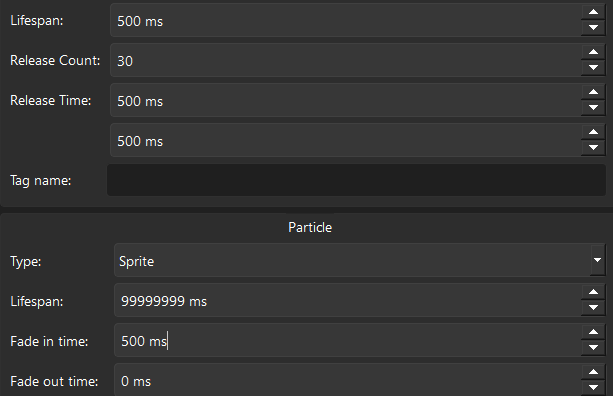 |
| Virtual Paradise Static Particle Values |
NOTE: If the static particle draws a black square and adding a mask does not work to get rid of it, set the blend mode to Additive. This may not actually create a glowing effect, depending on the type of particle you’re building.
Flat Panel particles
If a particle can be seen from both sides, be sure to select Double-sided Flat Panel as the “Type” in VP. Activeworlds makes all Flat Panel particles double-sided by default. For this reason.
If you’re translating a flat panel particle in AW to a single-sided flat panel particle in Virtual Paradise, double-check the angle measurements. Sometimes the angle values will be 180 degrees from what was intended and the visible side will be unseen.
Interactive / tagged / timed (animate me) particles
- All objects must be built under the same user account to interact correctly with other triggers and objects.
When working with a propdumped copy of an Activeworlds build in Virtual Paradise, you can do either of the following:
- a) duplicate all objects in the interactive chain into your name and delete the originals. See the town square teleport circle for an example of this.
- b) ask permission to log into that user’s account.
Model particles
There is no equivalent particle type in Virtual Paradise. Your options are:
- a) Recreate the particle using 3D models
- b) Wait for an update.
Offset particles due to cell space limitations
Sometimes particles in Activeworlds or DeltaWorlds are emitted in a different cell from the particle emitter to conserve cell space. You may cautiously “un-offset” them in Virtual Paradise if you wish.



